

How do I see what was changed in my account?
In short
Section titled “In short”The audit log answers “who changed what, and when?” — not for personnel data, but for the settings of your account: fields, field groups, roles, role and team assignments, the audit selection and sign-ins.
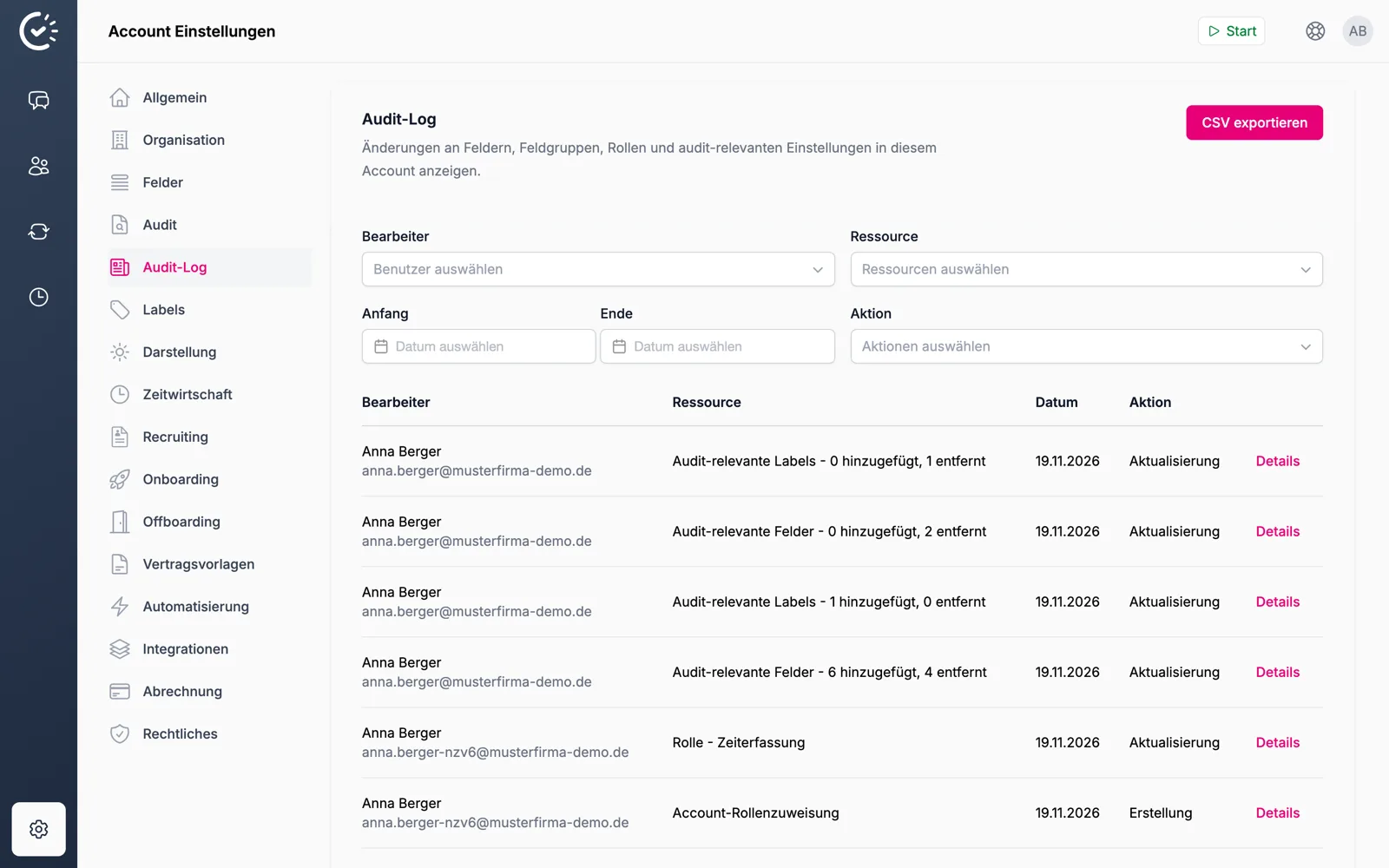
You find it under Account Settings → Audit Log. Entries appear automatically as soon as someone changes something — you do not create anything here, and nothing can be edited or deleted.
For changes to an individual personnel file there is a separate log inside the profile. That one is covered in How do I see changes to a personnel file?.
What gets recorded
Section titled “What gets recorded”Every entry consists of Actor, Resource, Date and Action. The action is one of Create, Update, Delete, Success or Failure.
These resources are covered:
- Field and Field group — changes to the field structure
- Role — changes to roles and their permissions
- Account role assignment and Team role assignment — who gets which role
- Team member — who is added to or removed from a team
- Audit-relevant fields and Audit-relevant labels — changes to the audit selection
- Session — sign-ins, including the login method
- Audit log export — who exported the log
Narrow down the entries
Section titled “Narrow down the entries”- Go to Account Settings → Audit Log.
- Use the filters to narrow down what you are looking for:
- Actor — one or more people
- Resource — for example only Role
- Start and End — the period
- Action — for example only Delete
- The list updates right away.
Look at the details of an entry
Section titled “Look at the details of an entry”- Find the row you need in the list.
- Click Details on the right.
The detail panel shows exactly what changed — for a role, for example, which permissions were granted or not granted.
Export the audit log
Section titled “Export the audit log”- Set the filters first, so they match what the export should contain.
- Click Export CSV in the top right.
Permissions and visibility
Section titled “Permissions and visibility”Audit Log only appears in the account settings if your role is allowed to see the account log. The log is not restricted by team: whoever may see it, sees the entries of the whole account.
Common questions
Section titled “Common questions”Does this also contain changes to employee data?
Section titled “Does this also contain changes to employee data?”No. Those live in the audit log of the respective personnel file. This one covers account settings.
Can I delete or correct entries?
Section titled “Can I delete or correct entries?”No. The log is deliberately immutable — that is the point of an audit log.
Why do sign-ins appear in the log?
Section titled “Why do sign-ins appear in the log?”Because access to the account should be traceable too. The Session entry records which login method someone came in through.
Does the export contain everything or only the filtered rows?
Section titled “Does the export contain everything or only the filtered rows?”The export follows the filters you set. For a complete log, clear all filters first.
How long are entries kept?
Section titled “How long are entries kept?”Entries are not removed automatically. They stay in the log.
Support
Section titled “Support”Our Help Center holds many more articles about Papershift. If you still have questions or need a hand, our support team is happy to help. You can reach us at any time directly from the software.