

How do I use labels?
In short
Section titled “In short”Labels are tags you define once, centrally, and then reuse in several places. They make sure everyone in the account uses the same wording — instead of “reference”, “references” and “reference letter” side by side.
They are used on documents in the personnel file, on HR tasks, in workflows and in the DATEV integration. Labels also help decide which documents count as audit-relevant.
You manage them under Account Settings → Labels. A new account already comes with a few labels that you can adjust or extend.
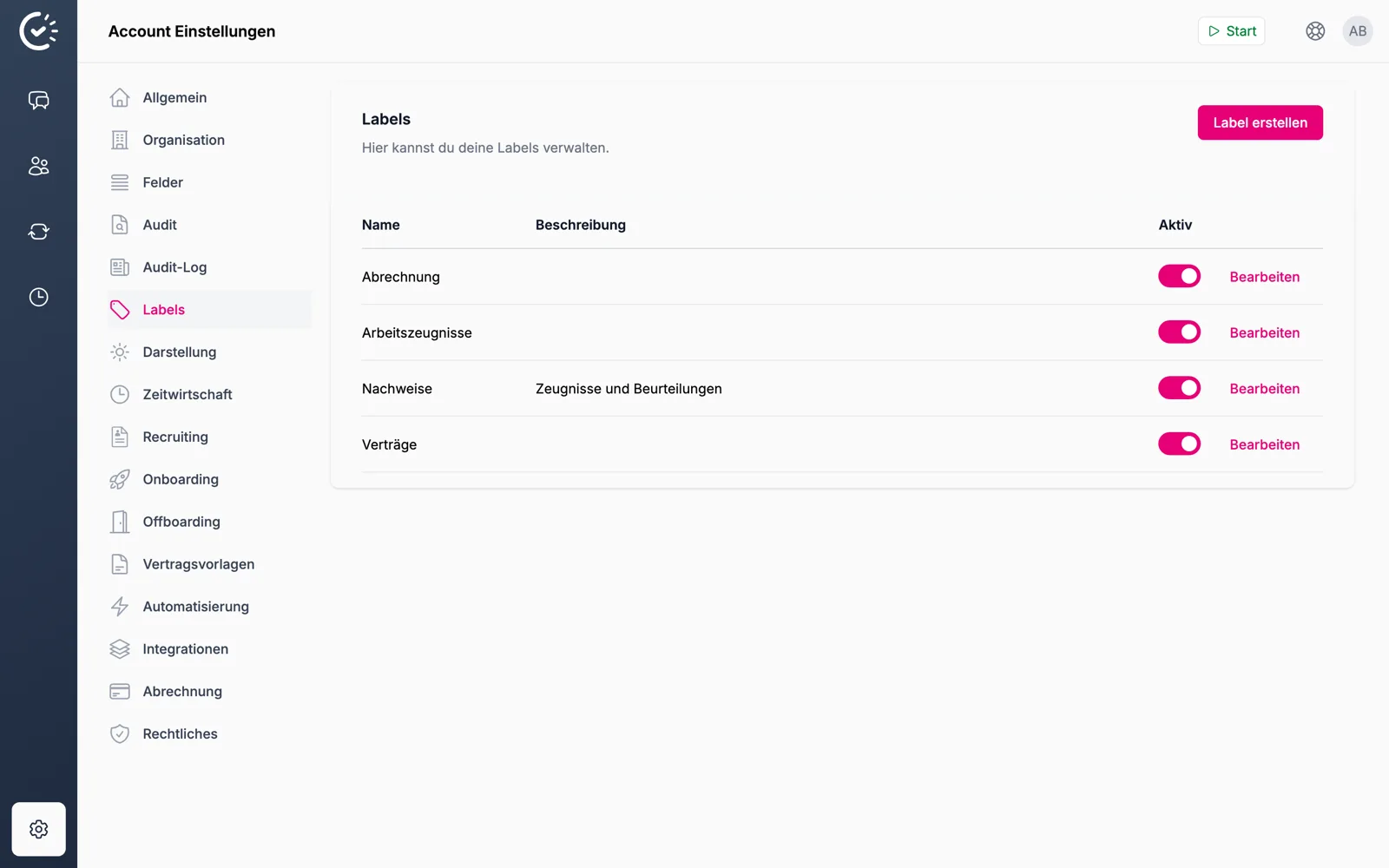
Create a label
Section titled “Create a label”- Go to Account Settings → Labels.
- Click the button to add a label.
- Enter a Name.
- Optionally add a Description so the team knows what the label is for.
- Click Submit.
Edit a label
Section titled “Edit a label”- Open Account Settings → Labels.
- Click Edit in the label’s row.
- Adjust the Name or Description.
- Click Submit.
Deactivate instead of deleting
Section titled “Deactivate instead of deleting”Every label has an Active status. Turn it off and the label disappears from the pickers, but stays on everything it has already been assigned to.
- Open Account Settings → Labels.
- Toggle the Active status in the label’s row.
Permissions and visibility
Section titled “Permissions and visibility”Labels only appears in the account settings if your role is allowed to see labels. Creating, editing and deleting are separate permissions — if one is missing, the matching button is absent or greyed out.
Employees without those permissions still see labels where they are assigned, for example on a document in their personnel file.
Common questions
Section titled “Common questions”Where can labels be assigned?
Section titled “Where can labels be assigned?”On documents in the personnel file, on HR tasks, in workflow actions and on the payroll document types of the DATEV integration.
What happens to assigned labels when I deactivate one?
Section titled “What happens to assigned labels when I deactivate one?”Nothing. They stay visible. The label just can no longer be assigned to anything new.
Why can’t I delete a particular label?
Section titled “Why can’t I delete a particular label?”Your role lacks the delete permission. The button points this out with a note.
Do labels have anything to do with permissions?
Section titled “Do labels have anything to do with permissions?”Only indirectly: under Account Settings → Audit you define which document labels count as audit-relevant. That selection controls what the auditor role sees.
Support
Section titled “Support”Our Help Center holds many more articles about Papershift. If you still have questions or need a hand, our support team is happy to help. You can reach us at any time directly from the software.