

How do I export employee data?
In short
Section titled “In short”Sometimes personnel data has to leave Papershift — for an audit, a data protection request or a handover to payroll. That is what the employee data export is for.
You control three things: who is included, which data comes along and in which file format. The export runs in the background; once it is finished, you download the file.
You start it from Employees → Export.
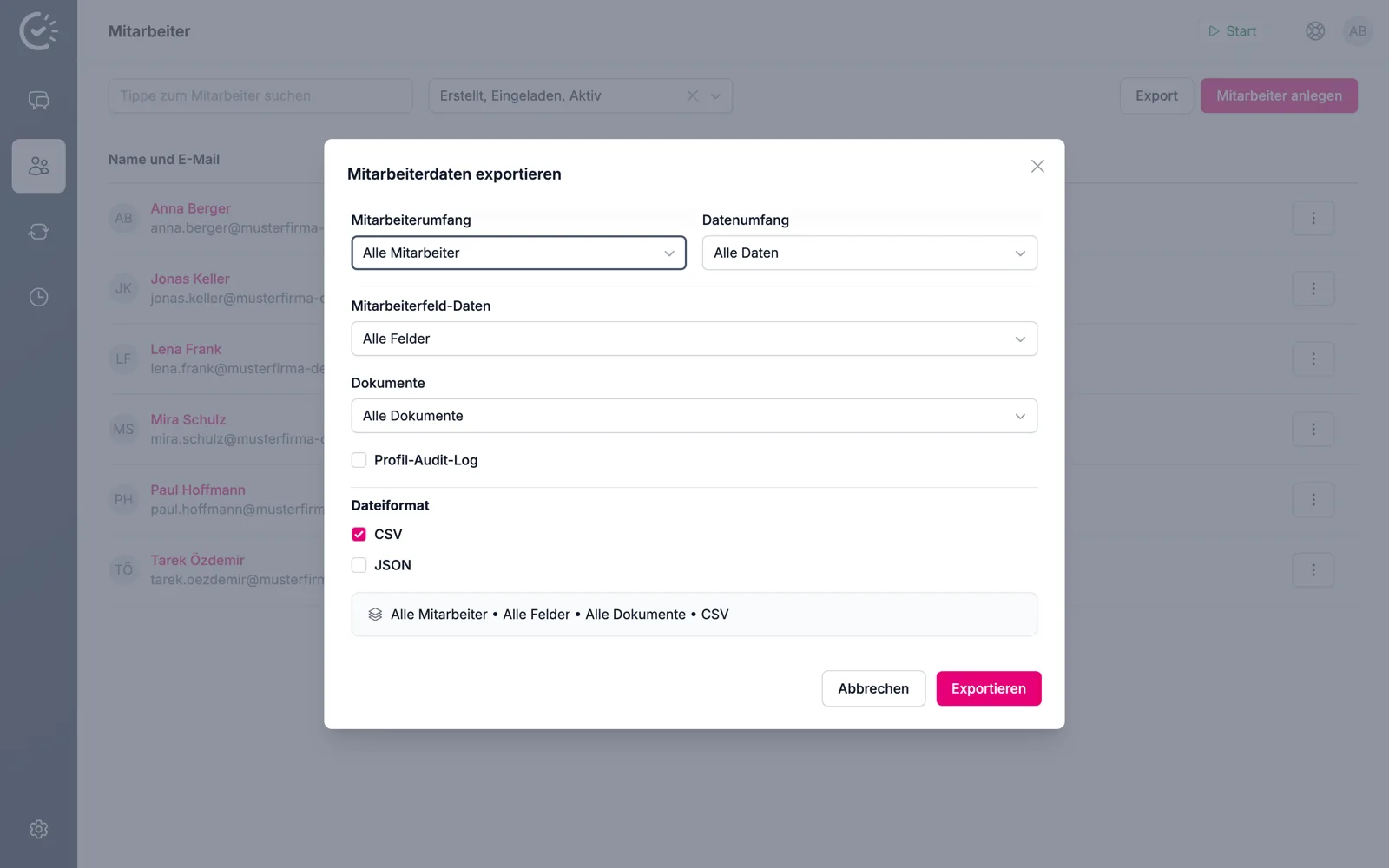
Create an export
Section titled “Create an export”- Go to Employees.
- Click Export in the top right.
- Set the Employee scope:
- All employees
- Specific teams — then pick the teams
- Specific employees — then pick the people
- Set the Data scope: All data, only Field data or only Documents.
- Narrow it down further if you need to:
- Employee field data: All fields or Specific fields
- Documents: All documents or Specific labels
- Tick Profile audit log if the personnel file’s log should be included
- Choose the File format: CSV or JSON.
- Click Export.
At the bottom of the dialog, one line summarises your selection — for example “All employees • All fields • All documents • CSV”. Check it before you start the export.
Download an export
Section titled “Download an export”Finished exports are listed in the same dialog, below the form.
- Open Employees → Export.
- Check the Status in the list:
- Running — the export is being produced
- Ready — the file can be downloaded
- Failed — the export could not be produced
- Click Download on a finished export.
Permissions and visibility
Section titled “Permissions and visibility”The Export button only appears if your role is allowed to export employee data. The export contains only people and fields you may see anyway — it does not bypass permissions.
Every export is recorded in the audit log of the affected personnel files as an Export action.
Common questions
Section titled “Common questions”How long does an export take?
Section titled “How long does an export take?”That depends on the volume. The status jumps from Running to Ready once the file is done — you can close the dialog in the meantime.
Which format should I pick?
Section titled “Which format should I pick?”CSV opens directly in Excel or Google Sheets. JSON suits cases where the data is read into another system.
Are documents included in the file?
Section titled “Are documents included in the file?”Yes, if you choose the data scope All data or Documents. Specific labels narrows down which documents come along.
Why are fields missing from the export?
Section titled “Why are fields missing from the export?”Either they were not part of your selection, or your role may not see them. Fields you cannot view are not exported.
My export failed — what now?
Section titled “My export failed — what now?”Start it again, ideally with a smaller scope. If it keeps failing, contact our support team.
Can anyone see that I exported data?
Section titled “Can anyone see that I exported data?”Yes. The export appears in the audit log of the affected personnel files.
Support
Section titled “Support”Our Help Center holds many more articles about Papershift. If you still have questions or need a hand, our support team is happy to help. You can reach us at any time directly from the software.