

How do I read my hours account?
In short
Section titled “In short”The hours account answers one question: have you worked more or less than agreed? To do that, it puts your target working time next to the time actually tracked, day by day.
You do not create anything here — the hours account calculates on its own. The target comes from your working time model, the actual time from your confirmed time trackings. Absences are credited so that a day of vacation or sick leave does not produce a deficit.
You find it in your profile under Time management → Hours Account.
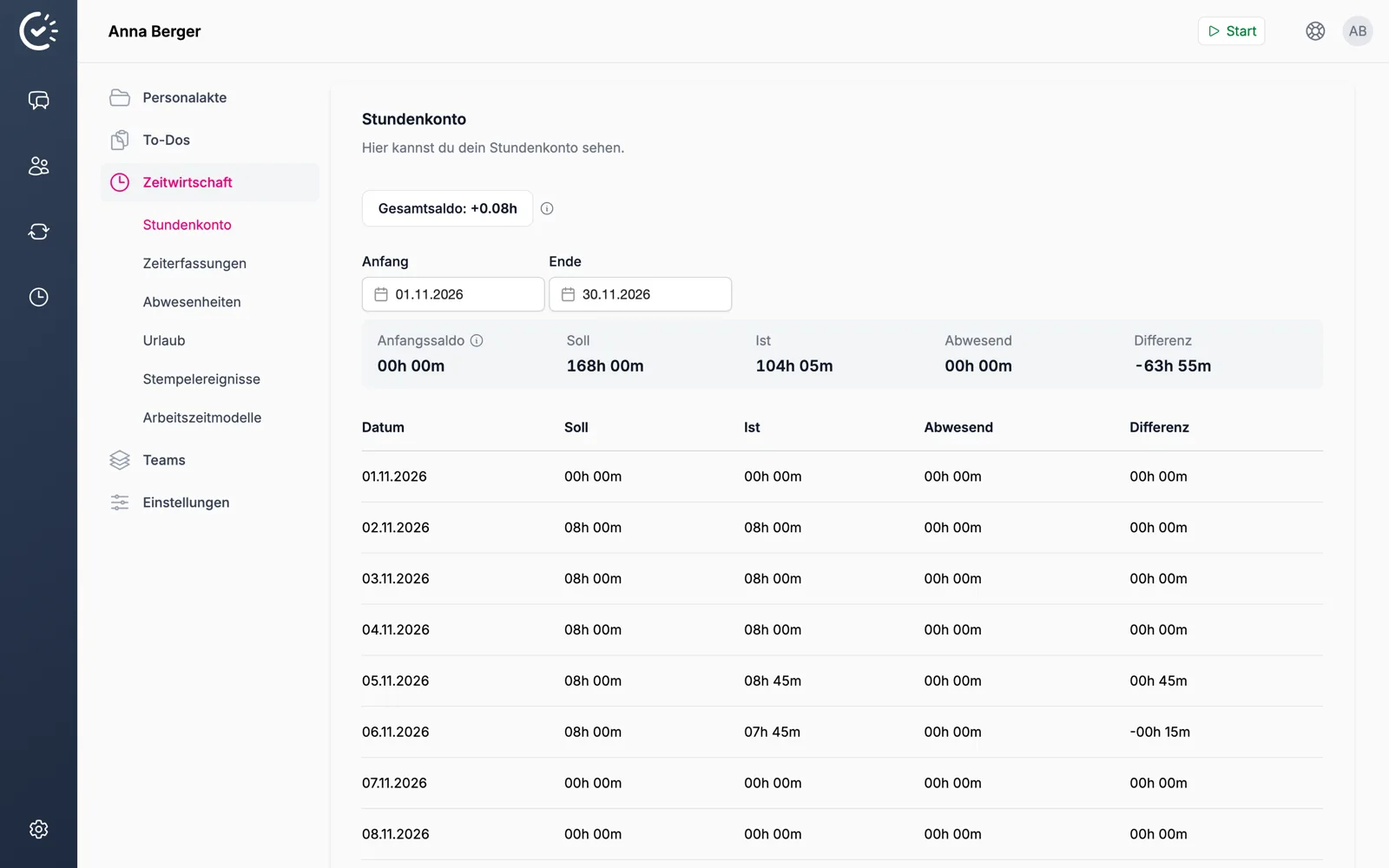
Reading the numbers
Section titled “Reading the numbers”At the top you see the Total balance. It sums up everything through the end of yesterday. Today is not included, and the total balance does not change when you pick a different period below.
Below that, Start and End define the period you want to look at. For that period you see:
- Opening balance — the balance accumulated before the selected period starts
- Target — the working time your working time model expects
- Actual — the time actually tracked, excluding breaks
- Absent — the target time of days covered by a confirmed absence
- Difference — Actual plus Absent minus Target
The same columns appear again below, one row per day.
Look at a different period
Section titled “Look at a different period”- Open Time management → Hours Account in your profile.
- Set the start date under Start.
- Set the end date under End.
The summary and the daily list update right away.
Look at an employee’s hours account
Section titled “Look at an employee’s hours account”If you are responsible for people, you reach the same view from their profile.
- Go to Employees and open the profile you need.
- Switch to Time management → Hours Account.
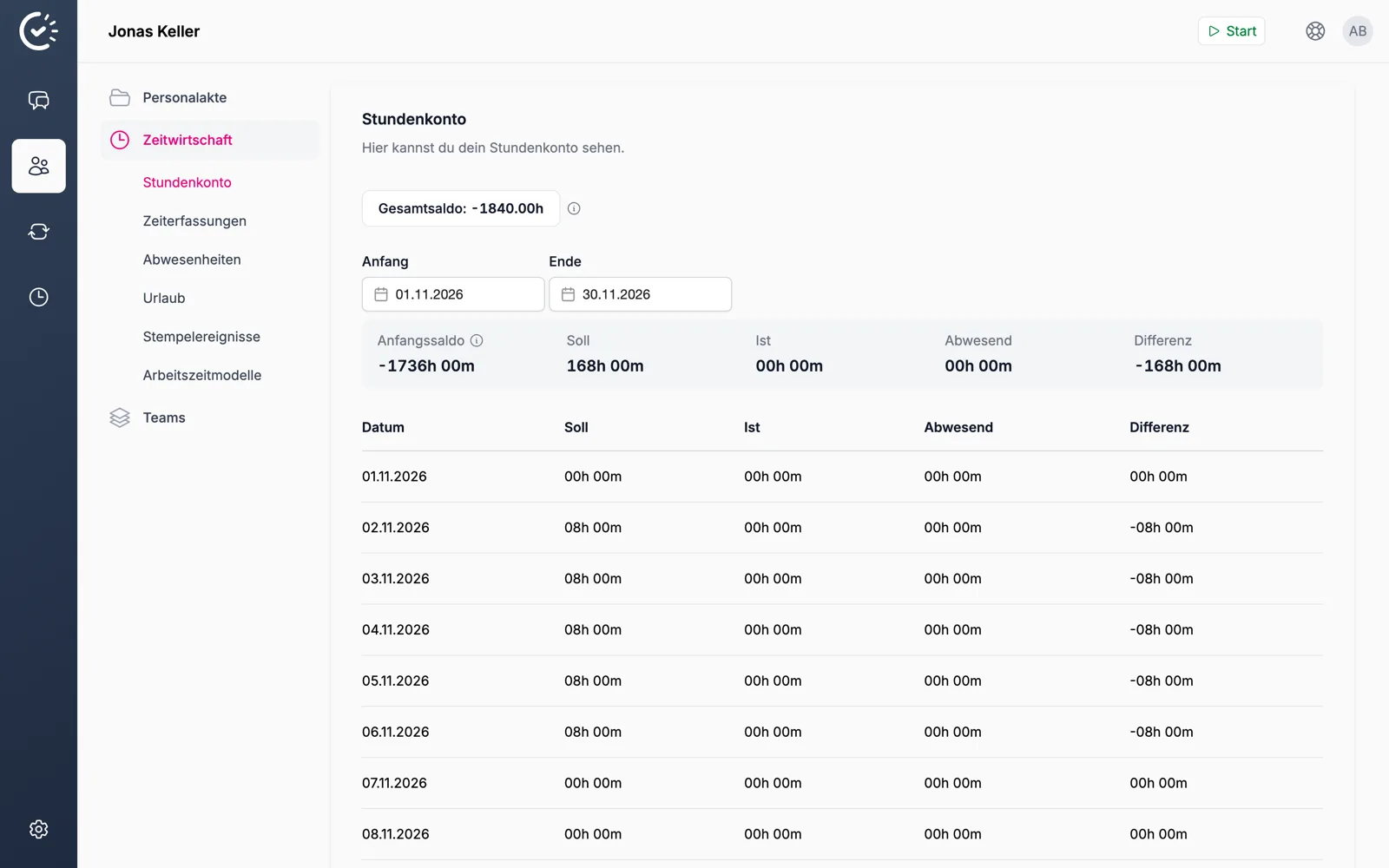
Permissions and visibility
Section titled “Permissions and visibility”Whether Hours Account appears in the profile navigation depends on your role. You can normally see your own hours account; seeing someone else’s requires an additional permission.
Common questions
Section titled “Common questions”Why is my actual time zero although I punched in?
Section titled “Why is my actual time zero although I punched in?”The time tracking has not been confirmed yet. Only confirmed time trackings count towards the hours account.
Why is my target zero on some days?
Section titled “Why is my target zero on some days?”Your working time model does not schedule working time on that weekday, or the model only starts at a later date.
Why doesn’t my vacation day create a deficit?
Section titled “Why doesn’t my vacation day create a deficit?”Because the day’s target time is credited as Absent. This only works once the absence has been confirmed.
Are breaks included in the actual time?
Section titled “Are breaks included in the actual time?”No. The actual time is net working time — tracked breaks are already deducted.
Why does the total balance differ from the difference in the period?
Section titled “Why does the total balance differ from the difference in the period?”The total balance sums everything through yesterday, regardless of the selected period. The Difference only covers the period you set.
Can I correct entries in the hours account?
Section titled “Can I correct entries in the hours account?”Not directly. Correct the underlying time tracking or the working time model instead — the hours account recalculates afterwards.
Support
Section titled “Support”Our Help Center holds many more articles about Papershift. If you still have questions or need a hand, our support team is happy to help. You can reach us at any time directly from the software.