

How do I define which data is audit-relevant?
In short
Section titled “In short”During a payroll tax or social security audit, the auditor needs access to certain personnel data — but only to that. Under Account Settings → Audit you define once what belongs to it.
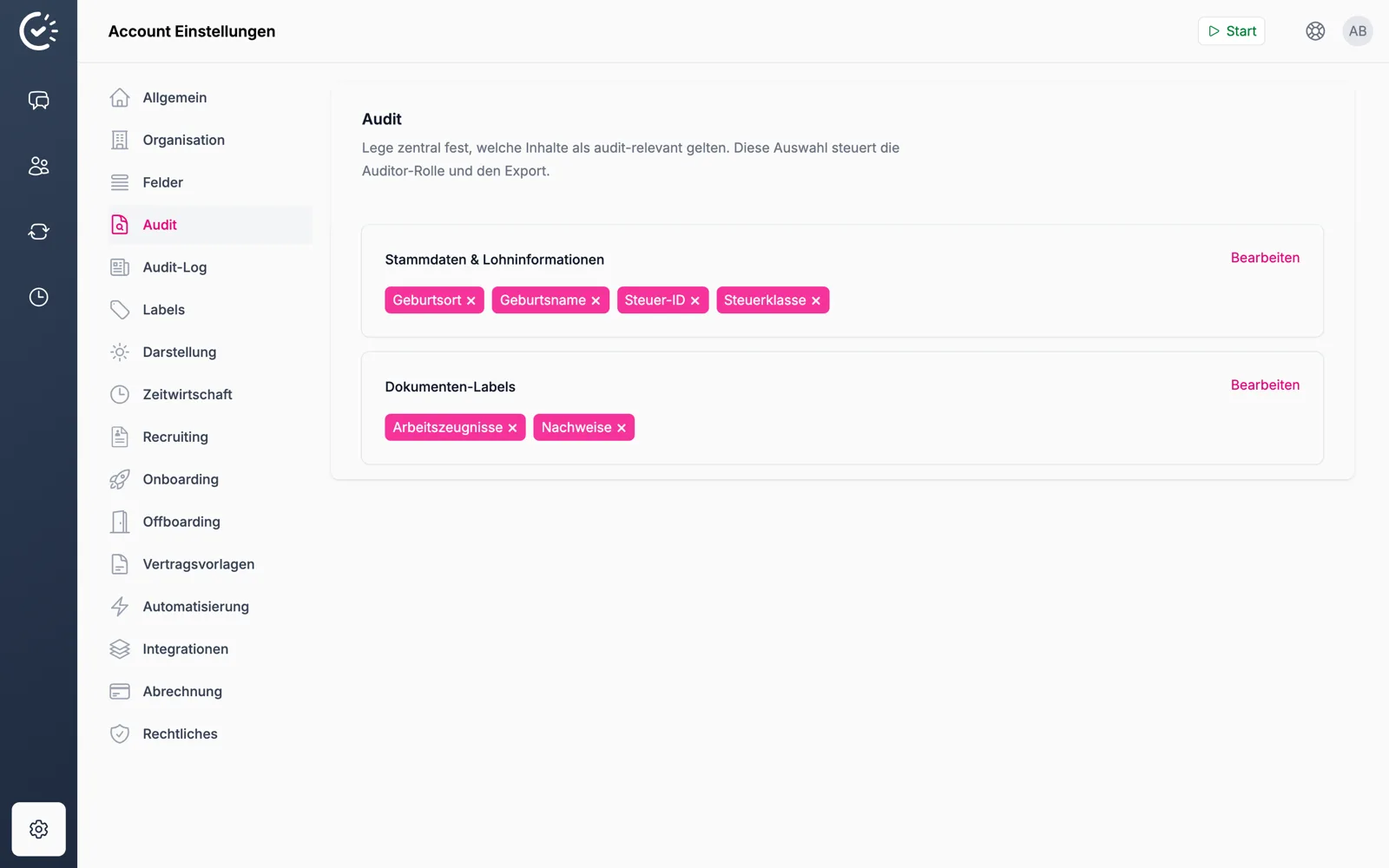
The selection has two parts: individual fields from master data and payroll information, and document labels. Everything you include here counts as audit-relevant.
That selection controls two things: what the Auditor role may see inside personnel files, and what the export contains. You do not have to release individual personnel files.
Select audit-relevant fields
Section titled “Select audit-relevant fields”- Go to Account Settings → Audit.
- In Master Data & Payroll Information, click Edit.
- Pick the fields that are audit-relevant — for example Tax ID or Tax class.
- Save the selection.
The chosen fields then appear as a list in the section. Use the x on an entry to take it out again.
Select audit-relevant documents
Section titled “Select audit-relevant documents”Documents are not released individually, but through their labels.
- Go to Account Settings → Audit.
- In Document Labels, click Edit.
- Pick the labels whose documents are audit-relevant.
- Save the selection.
What this changes
Section titled “What this changes”The selection works in both directions:
- The Auditor role sees only the fields included here and the documents carrying the labels chosen here.
- Auditors always see the current state of the selection. Remove a field and it disappears from their view too — including retroactively for older changes.
- Every change to this selection is itself recorded and shows up under Account Settings → Audit Log.
Permissions and visibility
Section titled “Permissions and visibility”Audit only appears in the account settings if your role is allowed to see fields. The setting applies account-wide — it covers all personnel files equally and cannot be set differently per team or person.
Common questions
Section titled “Common questions”Does this give auditors the whole personnel file?
Section titled “Does this give auditors the whole personnel file?”No. They only see the fields and document labels you selected here.
Can I release individual documents without assigning a label?
Section titled “Can I release individual documents without assigning a label?”No. Release runs exclusively through labels. A document without a matching label stays invisible to auditors.
Does the selection apply retroactively?
Section titled “Does the selection apply retroactively?”Yes. What counts is always the current state of the selection, not the one at the time of an earlier change.
Where do I see who changed the audit settings?
Section titled “Where do I see who changed the audit settings?”Under Account Settings → Audit Log. Changes to this selection appear there as their own entry.
Why can’t I find a field in the selection?
Section titled “Why can’t I find a field in the selection?”It is not set up as a field in your account. Create it under Account Settings → Fields first.
Support
Section titled “Support”Our Help Center holds many more articles about Papershift. If you still have questions or need a hand, our support team is happy to help. You can reach us at any time directly from the software.