

How do I see changes to a personnel file?
In short
Section titled “In short”A personnel file holds sensitive data. That is why its audit log records not only what was changed, but also who looked at it.
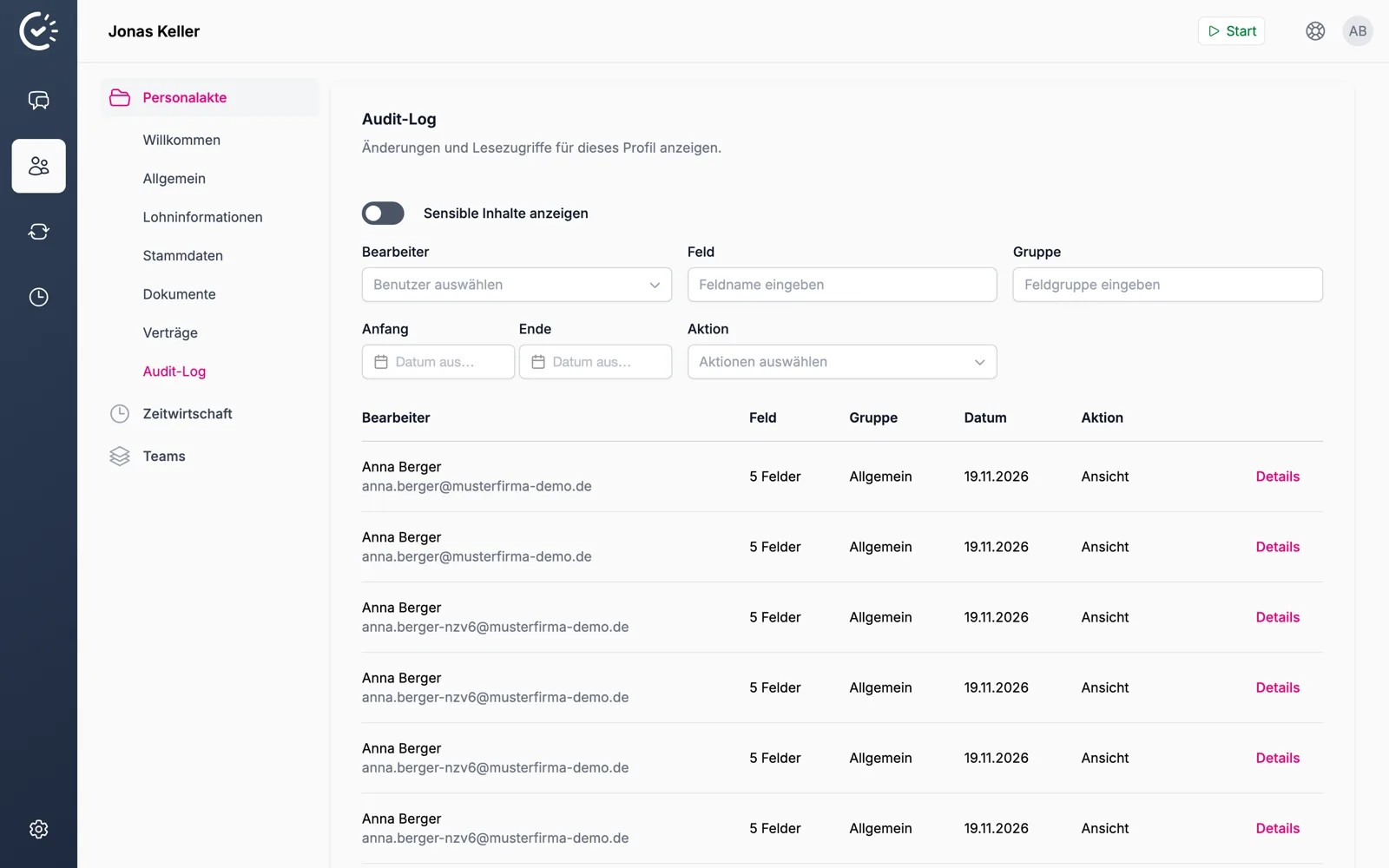
You find it in the profile under Personnel File → Audit Log. The same path applies to your own profile.
Entries are created automatically. You can neither add, edit nor delete them.
What gets recorded
Section titled “What gets recorded”The list shows Actor, Field, Group, Date and Action. These actions occur:
- Update — a field was changed
- Upload — a document was added
- Delete — a field or document was removed
- View — someone opened an area of the file
- View denied — an access attempt was refused for lack of permissions
- Export — the data was exported
For View, the opened area appears instead of a single field: General, Master Data, Payroll Information, Documents or Profile Audit Log — along with the number of fields or documents seen.
Narrow down the entries
Section titled “Narrow down the entries”- Open Personnel File → Audit Log in the profile.
- Use the filters:
- Actor — who acted
- Action — for example only View
- Field — type the field name
- Group — type the field group
- The period via the date picker
Look at before and after values
Section titled “Look at before and after values”- Find the row you need.
- Click Details on the right.
The detail panel puts Before and After side by side, along with Who, Field, Group, Date and Action. For a read access you instead see the Area, the Field count and the Resolved scope of the access.
Sensitive content
Section titled “Sensitive content”Some fields and documents count as sensitive. By default their content stays hidden in the log; the row then only shows that something sensitive was involved.
- Open Personnel File → Audit Log.
- Turn on Show sensitive content.
Permissions and visibility
Section titled “Permissions and visibility”Audit Log only appears in the personnel file if your role may see profile changes. Without that permission the entry is missing from the navigation.
The Auditor role sees only what is marked audit-relevant under Account Settings → Audit. See How do I define which data is audit-relevant? for that selection.
Common questions
Section titled “Common questions”Can I see who opened my own personnel file?
Section titled “Can I see who opened my own personnel file?”Yes, provided your role may see the audit log of your profile. Open your profile and switch to Personnel File → Audit Log.
What does “View denied” mean?
Section titled “What does “View denied” mean?”Someone tried to open an area they lack permissions for. The attempt is recorded, the data was not shown.
Why do some rows have no field name?
Section titled “Why do some rows have no field name?”Read accesses have no single field. Those rows show the area and the number of fields or documents involved.
Can the log be exported?
Section titled “Can the log be exported?”Yes — through the employee data export. Tick Profile Audit Log there. See How do I export employee data?.
Can I delete entries?
Section titled “Can I delete entries?”No. The log is immutable.
Support
Section titled “Support”Our Help Center holds many more articles about Papershift. If you still have questions or need a hand, our support team is happy to help. You can reach us at any time directly from the software.