

How do I set up my notifications?
In short
Section titled “In short”When you have unread chat messages, Papershift sends you one reminder email per day. Whether you get that email is up to you.
You find the setting in your profile under Settings → Notifications. It applies to you alone — nobody else can change it for you, and you cannot set it for others.
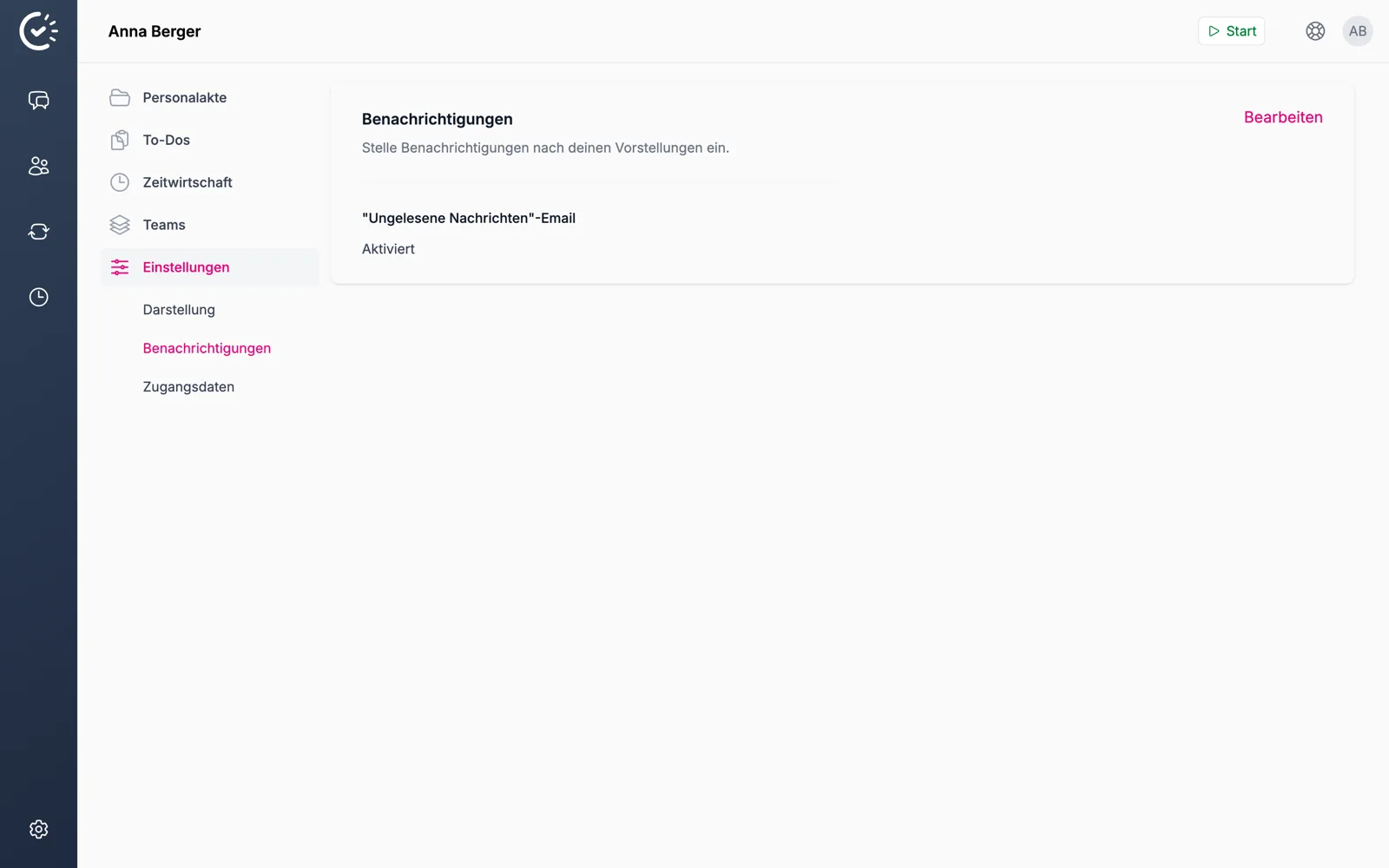
Turn the daily email on or off
Section titled “Turn the daily email on or off”- Open your profile and go to Settings → Notifications.
- Click Edit.
- Turn Unread Messages Email on or off.
- Click Submit.
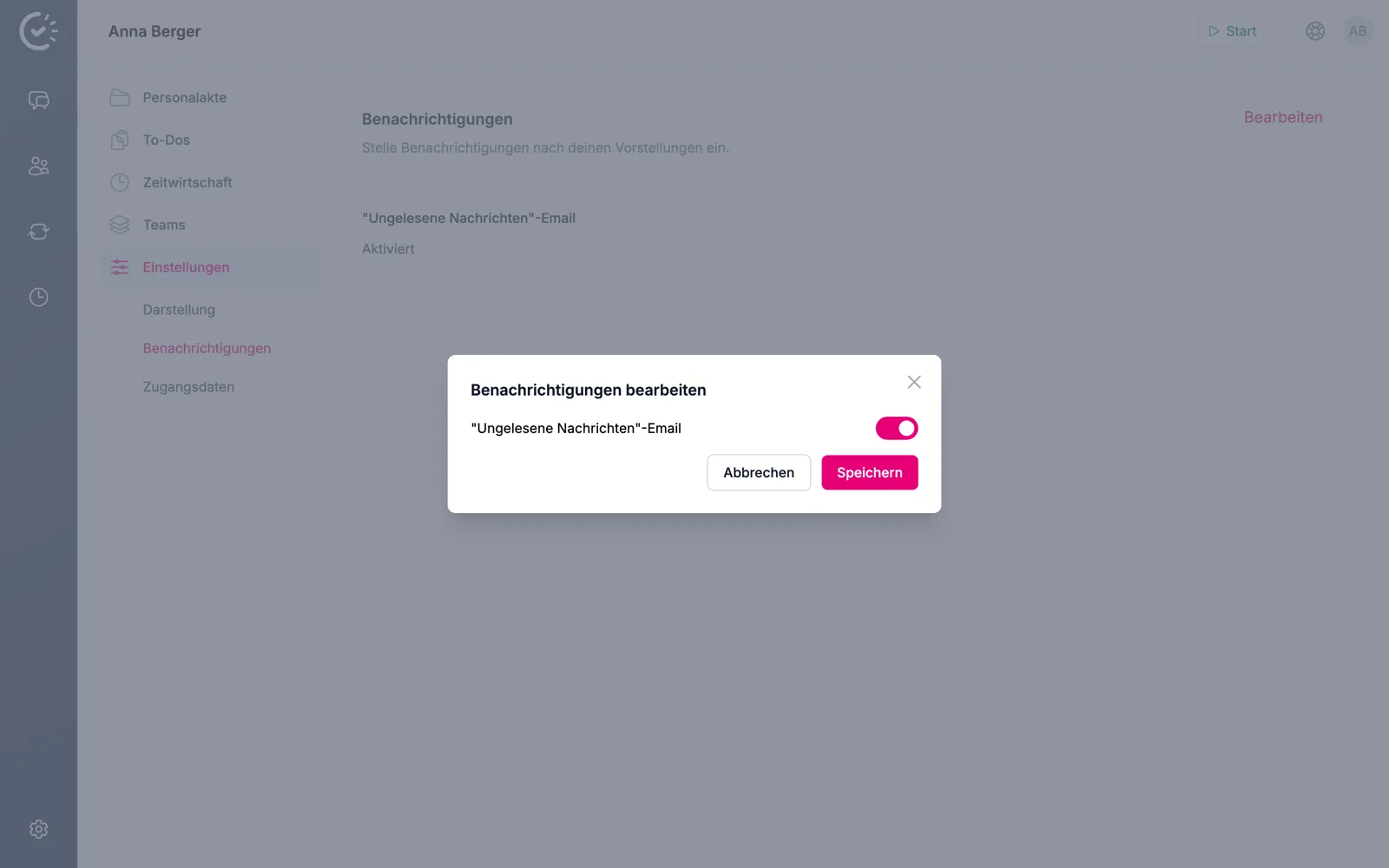
The current state is then shown in the overview — Enabled or Disabled.
Common questions
Section titled “Common questions”I get no email although the setting is enabled.
Section titled “I get no email although the setting is enabled.”The email is only sent when you actually have unread messages. Also check your spam folder.
Can I set notifications for my team?
Section titled “Can I set notifications for my team?”No. Everyone decides this in their own profile.
Does this switch off push notifications too?
Section titled “Does this switch off push notifications too?”No. Push notifications are allowed or blocked in your browser or on your device.
Are there other notifications I can configure?
Section titled “Are there other notifications I can configure?”At the moment, the daily email about unread messages is the only setting in this place.
Support
Section titled “Support”Our Help Center holds many more articles about Papershift. If you still have questions or need a hand, our support team is happy to help. You can reach us at any time directly from the software.