

How do I work with HR tasks?
In short
Section titled “In short”HR tasks are small jobs around your people work — a contract needs a counter-signature, a certificate is missing, a reference letter has to be drafted. Instead of losing those in notes and emails, you collect them in one place.
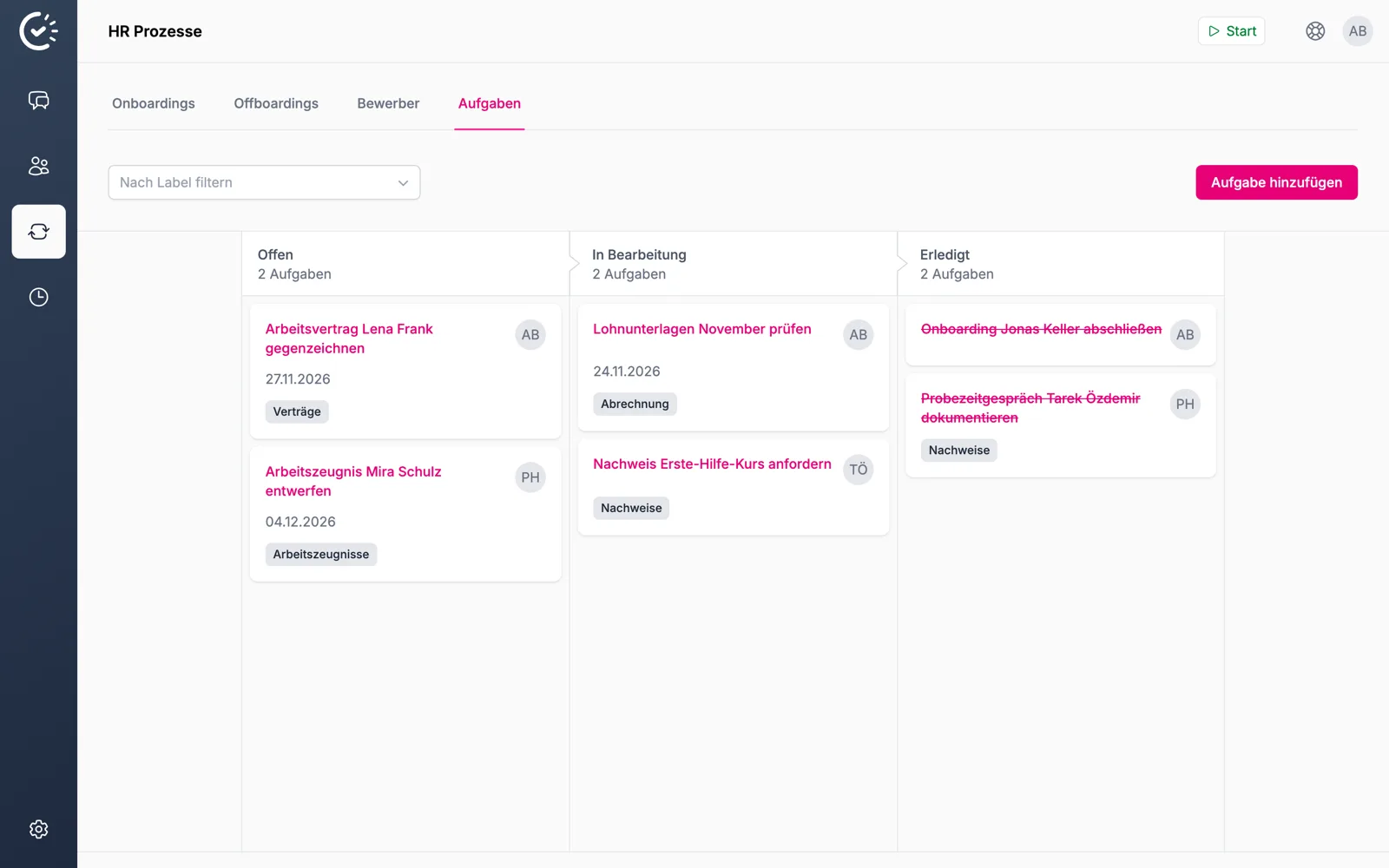
You find them under HR Processes → Tasks. The board has three columns: Open, In Progress and Done. Each column header shows how many tasks it holds. Completed tasks stay visible and are shown with a strikethrough.
Every task can carry a deadline, an assignee and labels. These are the same labels you use elsewhere in the account, and you can filter the board by them.
Create a task
Section titled “Create a task”- Go to HR Processes → Tasks.
- Click Add Task in the top right.
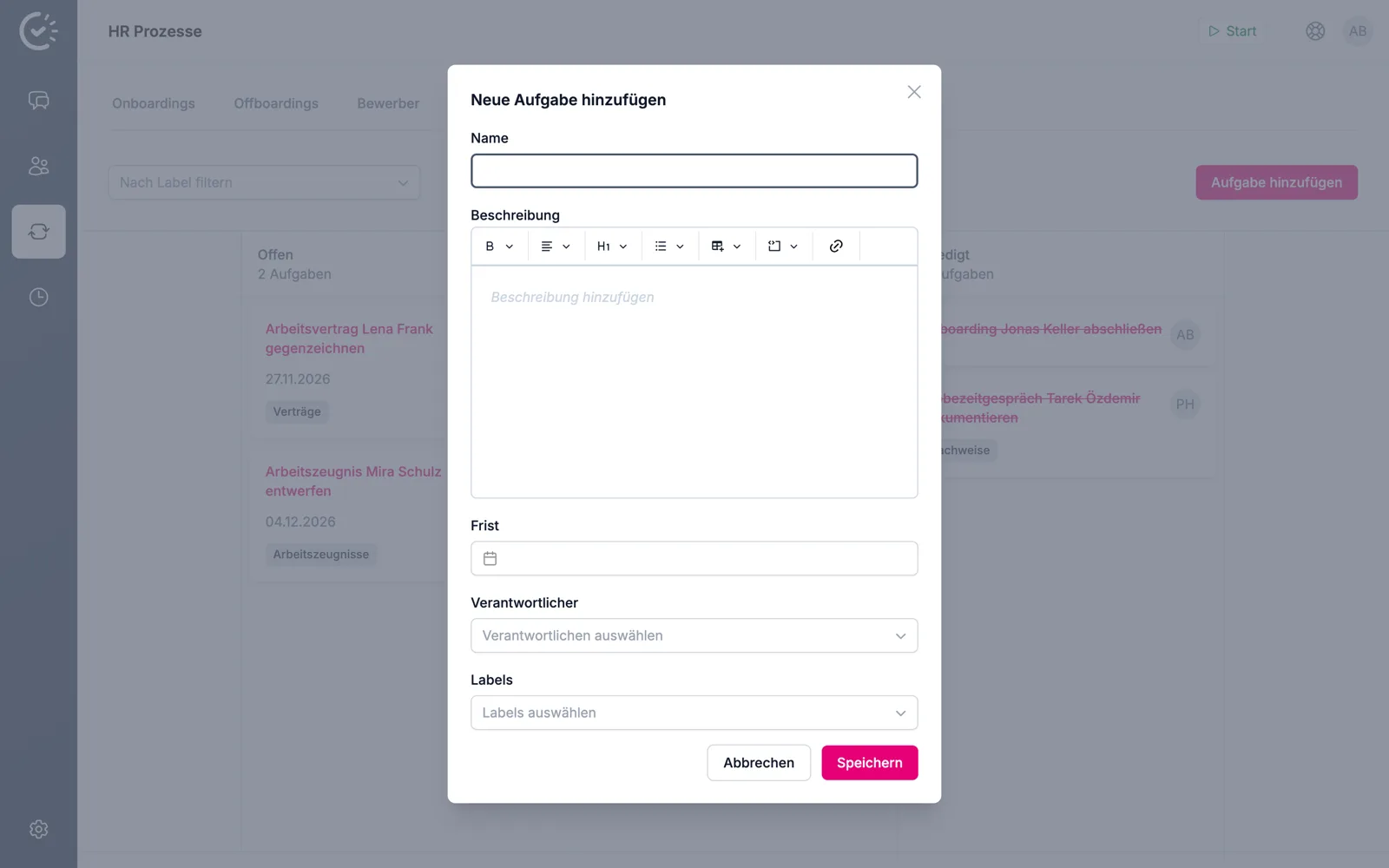
- Enter a Name. This is the only required field.
- Add whatever else you need:
- Description — background or notes on the task
- Deadline — when the task should be finished
- Assignee — who takes care of it
- Labels — for grouping and filtering
- Status — which column the task starts in
- Click Submit.
Edit a task or change its status
Section titled “Edit a task or change its status”The board does not support drag and drop. You change the status inside the task.
- Click the task on the board.
- In Edit task, change what has moved on — for example the Status from Open to In Progress.
- Click Submit.
The task then moves to the matching column.
Delete a task
Section titled “Delete a task”- Open the task on the board.
- Click Delete task.
- Confirm with Delete.
See your own tasks
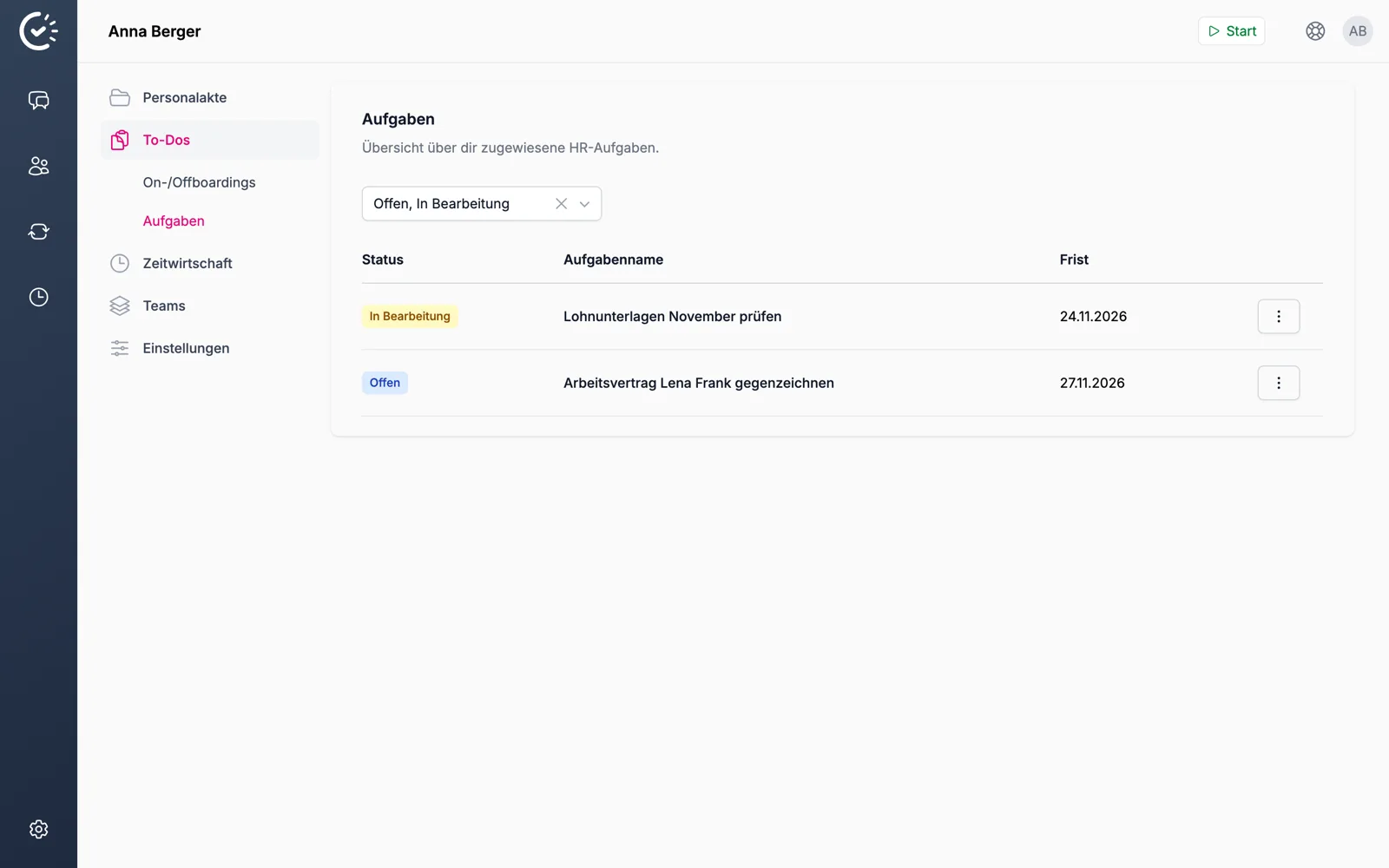
Section titled “See your own tasks”Tasks assigned to you are collected in your profile under To-Dos → Tasks. There you can filter by status and set the status directly via Change status, without switching to the board.
Permissions and visibility
Section titled “Permissions and visibility”The Tasks tab only appears if your role is allowed to see HR tasks. Whether you can also create, edit or delete them depends on your role as well — if a permission is missing, the matching button is simply not there.
The board shows the tasks of the whole account, not only your own. You only see the label picker if you are allowed to see labels.
Common questions
Section titled “Common questions”Why can’t I see the “Tasks” tab?
Section titled “Why can’t I see the “Tasks” tab?”Your role is not allowed to see HR tasks. Ask someone with administration rights in your account.
Can I assign a task to several people?
Section titled “Can I assign a task to several people?”No, a task has exactly one assignee. For work involving several people, create one task per person.
Are assignees notified about new tasks?
Section titled “Are assignees notified about new tasks?”Assigning a task does not send a separate notification. Assigned people see their tasks in their profile under To-Dos → Tasks.
What are the labels on a task for?
Section titled “What are the labels on a task for?”They help you sort. Filter by label narrows the board down to one topic, for example everything around contracts.
Do completed tasks disappear at some point?
Section titled “Do completed tasks disappear at some point?”No. They stay in the Done column until you delete them.
Support
Section titled “Support”Our Help Center holds many more articles about Papershift. If you still have questions or need a hand, our support team is happy to help. You can reach us at any time directly from the software.