

Where do I see my vacation quotas?
In short
Section titled “In short”Under Vacation you see how much of your quotas is left. Each quota shows the period it covers and the remaining balance, plus a bar that makes the state obvious at a glance — “30 days of 30”, for example.
You find the view in your profile under Time management → Vacation.
Which quotas exist at all is defined centrally. See How do I set up absence quotas? for that.
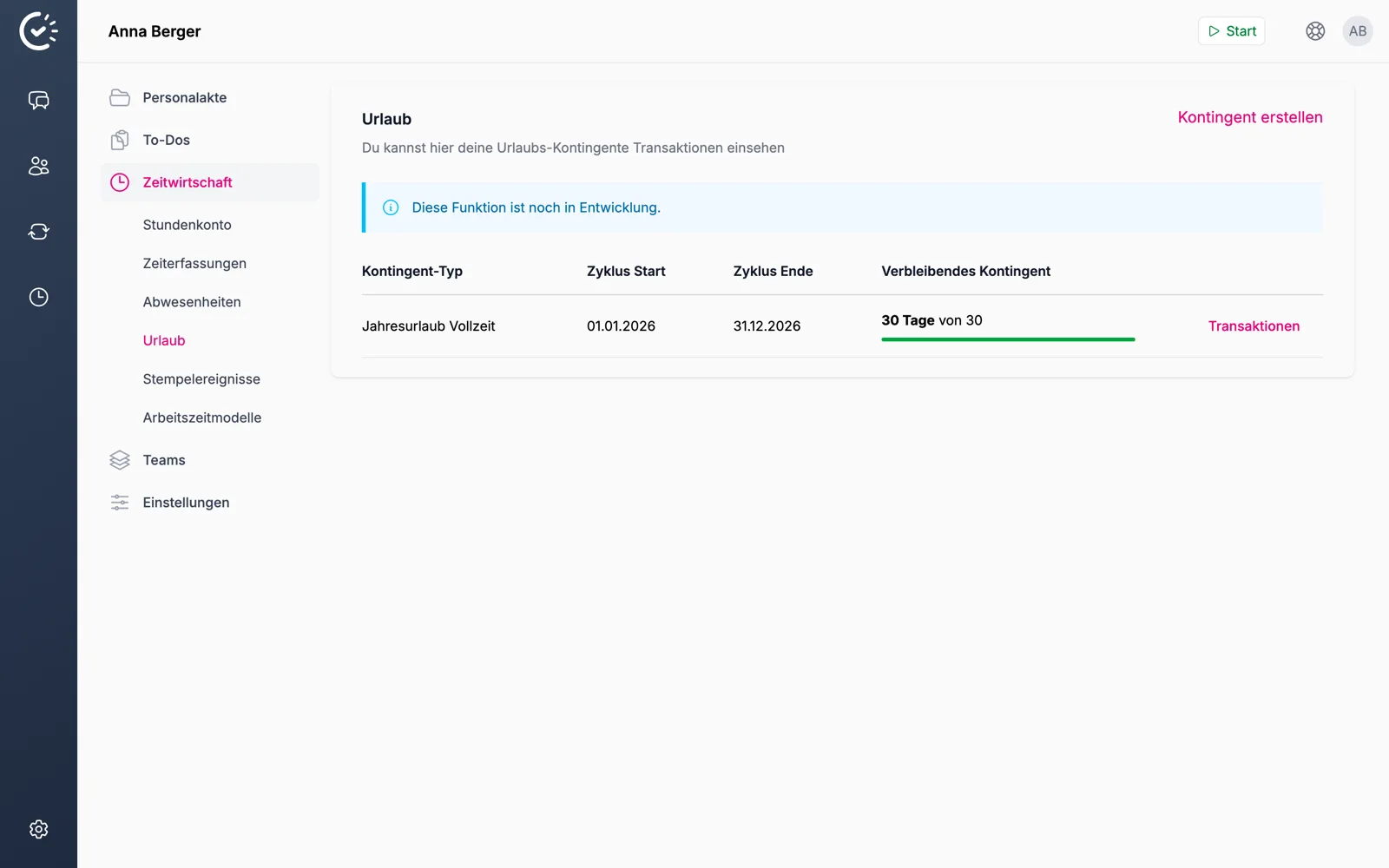
Reading the balance
Section titled “Reading the balance”The table has four columns:
- Quota Type — which quota this is, for example “Annual leave full time”
- Cycle Start and Cycle End — the period it covers
- Remaining Quota — how much is left, with a progress bar
Follow the bookings
Section titled “Follow the bookings”Behind every quota sits a list of individual bookings.
- Open Time management → Vacation in your profile.
- Click Transactions in the quota’s row.
The list shows Created at, Transaction, Amount and the Linked absence. These booking types occur:
- Grant — the quota was allocated
- Reserve — a requested absence holds days back
- Cancel reserve — the reservation was withdrawn
- Charge — days were deducted for good
- Refund — days came back, for example after a cancellation
- Correction, Proration, Carry over and Expiration — adjustments to the cycle
Assign a quota
Section titled “Assign a quota”With the right permissions you assign a quota to a person directly in their profile.
- Open the profile and go to Time management → Vacation.
- Click Create absence quota.
- Pick the matching entry under Absence quota type.
- Set Cycle start and Cycle end.
- Click Create.
Permissions and visibility
Section titled “Permissions and visibility”Vacation only appears in the profile navigation if your role allows it. You can normally see your own quota; viewing someone else’s or assigning new ones requires additional permissions.
Common questions
Section titled “Common questions”Why doesn’t my balance drop although I requested leave?
Section titled “Why doesn’t my balance drop although I requested leave?”An absence only books against a quota if its absence type is linked to exactly that quota. Without a link, the balance stays unchanged.
Are remaining days carried over to the next year?
Section titled “Are remaining days carried over to the next year?”Technically there is a Carry over booking type for that. Whether and how much is carried over follows your company’s own rules.
Can I correct a booking myself?
Section titled “Can I correct a booking myself?”No. Bookings come from absences and allocations. Correct the underlying absence instead.
I have several quotas — which one is used first?
Section titled “I have several quotas — which one is used first?”That depends on which absence type is linked to which quota. Every request books against the quota of its type.
Support
Section titled “Support”Our Help Center holds many more articles about Papershift. If you still have questions or need a hand, our support team is happy to help. You can reach us at any time directly from the software.